How to Check if a PDF Was Written by AI (Step by Step)
How to check a PDF for AI writing in 4 steps, including scanned PDFs, Google Docs exports and long theses, what a PDF AI score means, and what to do when a result looks wrong.
Short answer: upload the PDF to an AI detector that reads files directly, such as a PDF AI detector, and read the AI probability together with the highlighted passages. Before you do, make sure the PDF contains real, selectable text. A scanned PDF is a picture of a page, and no AI detector can score text it cannot read.
This guide covers the four steps, the special cases (scans, Google Docs, long theses, files on your phone), and how to read the result fairly.
Try it: use ProofAI's PDF AI checker, free for 10 checks a day with no login.
Step 1: Check that the PDF has selectable text
Open the PDF and try to select a sentence with your mouse or finger.
- You can highlight words: the PDF has a text layer. Go to step 2.
- The whole page selects like an image: it is a scan or a photo. Convert it first (see "Scanned PDFs" below).
Most PDFs exported from Word, Google Docs or LaTeX have selectable text. Scans from a printer, phone camera apps and some "print to PDF" tools do not.
Step 2: Upload the PDF to an AI detector
Upload the file itself instead of copying and pasting the text. Copying from a PDF often breaks lines, merges columns and pulls in headers, page numbers and footnotes, which makes any analysis less reliable.
Want to check your own content? Try ProofAI free 10 checks a day, no login needed.
On ProofAI you can upload PDF, DOCX, DOC and TXT files up to 25 MB, free for 10 checks a day without an account (PDF and Word AI checker).
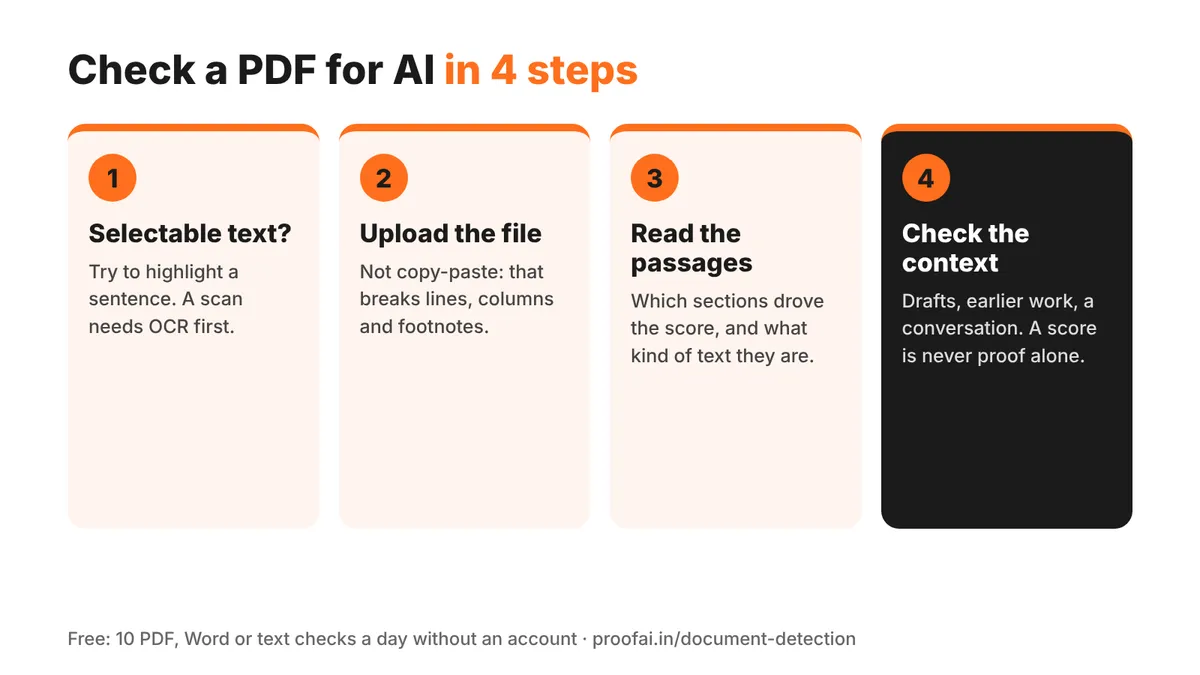
Four steps to check a PDF for AI: selectable text, upload, read the passages, check the context
Step 3: Read the score and the highlighted passages
An AI detector gives a probability, not a verdict. Look at three things:
- The overall AI probability: how much of the document reads like AI-generated text.
- Which passages drove it: a high score that comes from the introduction and conclusion alone means something different from a high score across every section.
- What kind of text was flagged: reference lists, definitions, formulas and standard phrases ("In conclusion…") are formulaic by nature and are harder for any detector.
Step 4: Check the context before you decide anything
A score is a reason to look closer. Compare it with the writer's drafts and earlier work, and if the result matters (a grade, a hiring decision), talk to the person about how they wrote it. OpenAI itself has said that no tool has proven able to reliably distinguish AI-written from human-written text (Business Today), so one number should never decide on its own.
Also read: How to Detect AI-Written Resumes and Job Applications
Special cases
Scanned PDFs
Run OCR (text recognition) first. A free way: upload the PDF to Google Drive, right-click it and choose Open with → Google Docs, which converts the text (Google Drive Help). Check the converted text for errors, download it as .docx and upload that file.
Google Docs
Use File → Download → PDF Document or Microsoft Word (.docx) and upload the file. Both keep the text intact.
Long theses and reports
Very long documents are fine to upload as one file if they are under the size limit. If a thesis has appendices full of tables, code or data, consider checking the main chapters separately: those sections say more about the writing than a data appendix does.
PDFs on your phone
If the file is in Google Drive, WhatsApp or another app, download it to your phone first and then upload it. A file that is still only in the cloud can fail to open in the browser.
Can Turnitin check PDFs for AI too?
Yes. Turnitin accepts PDFs for its AI writing report if the file has at least 300 words of long-form prose in a supported language (Turnitin). Students usually cannot run it themselves; see Can Turnitin detect AI in a PDF? for the details.
FAQ
How can I tell if a PDF was written by AI? Upload it to an AI detector that reads PDF files, look at the AI probability and the highlighted passages, and then check the context: drafts, earlier work and a conversation with the writer.
Can you check a PDF for AI for free? Yes. ProofAI checks PDF, DOCX, DOC and TXT files free for 10 checks a day without an account.
Why does my PDF not get an AI score? Usually because it is a scan without a text layer, it has too little continuous text, or it is mostly tables, images or formulas. Convert scans with OCR first.
Does saving a document as PDF change the AI score? It should not. A text-based PDF contains the same words as the Word file it came from, and detectors read the words, not the file format.
Is a high AI score proof that someone used AI? No. It is a probability and a reason to look closer. Formal, formulaic or non-native English writing can score high, so always review the passages and the context.
Conclusion
Checking a PDF for AI takes a minute: confirm the text is selectable, upload the file, read the passages behind the score, and look at the context before deciding anything. For scans, run OCR first; on a phone, download the file before you upload it.
Published by
AI tools may assist with drafting; a team member checks and approves every article before it is published. How we write and correct articles.
Popular AI detection tools
Ready to Verify Your Content?
Get weekly insights on AI detection. Start your journey toward digital authenticity with our AI detection tools.